PortGuard Client Tools for fwknop-compatible SPA
PortGuard Client is a cross-platform GUI client that supports the fwknop SPA protocol. It can import .fwknoprc or QR configurations and send fwknop-compatible authorization packets to fwknopd or PortGuard Server.
As of June 13, 2025, macOS x64, Windows x64, Android and iOS versions are available for download
Latest PortGuard Client interface
The current client interface is shared across desktop and mobile workflows. The screenshots below show saved profiles, one-tap SPA, QR import and encrypted export.
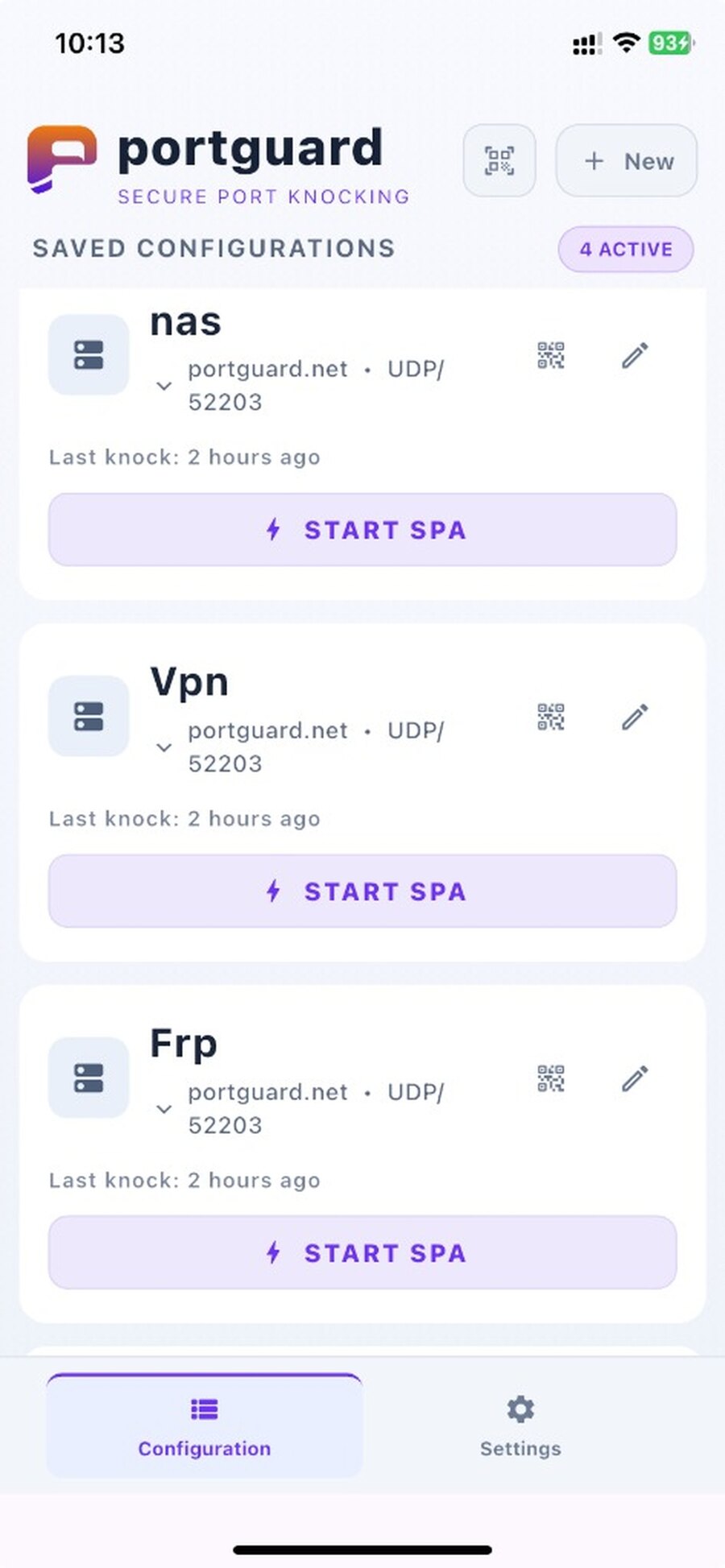
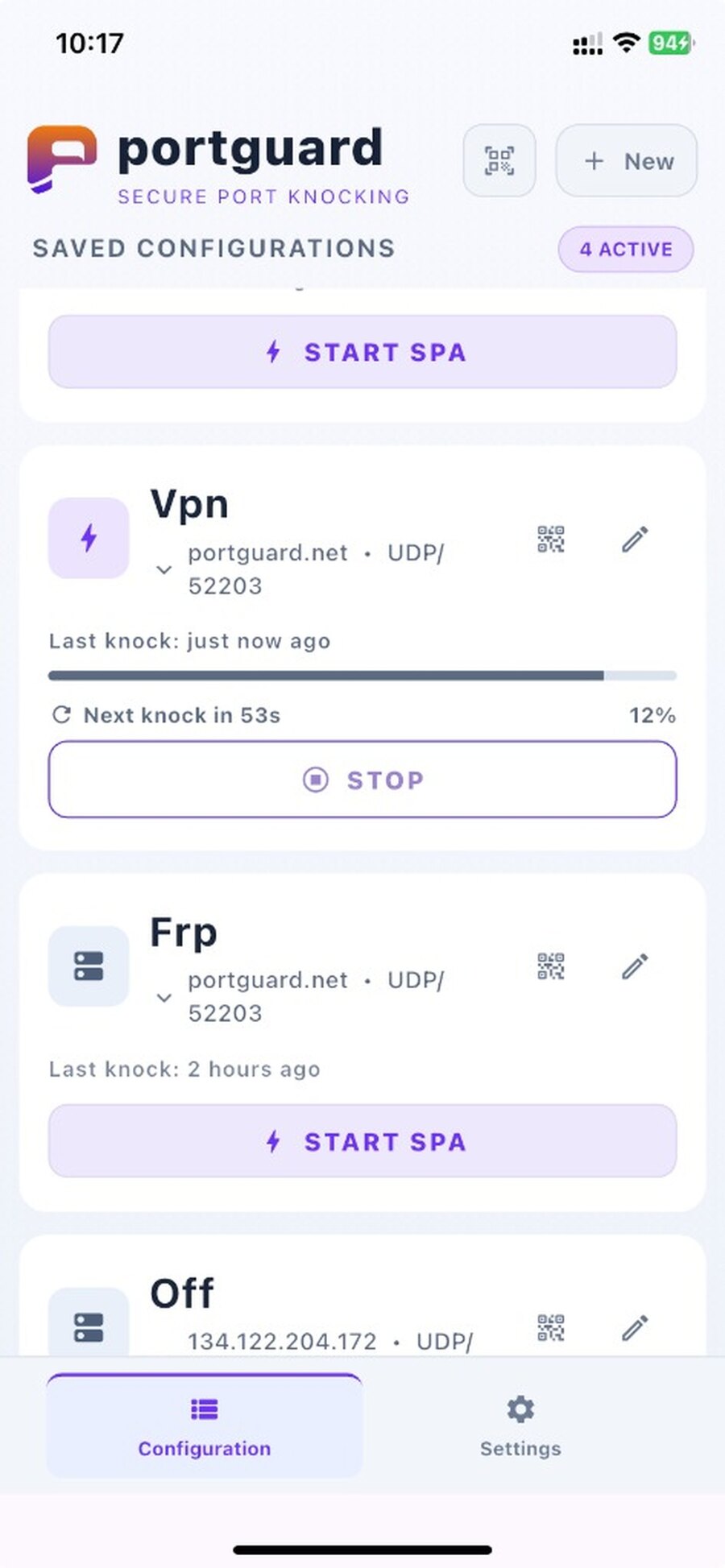
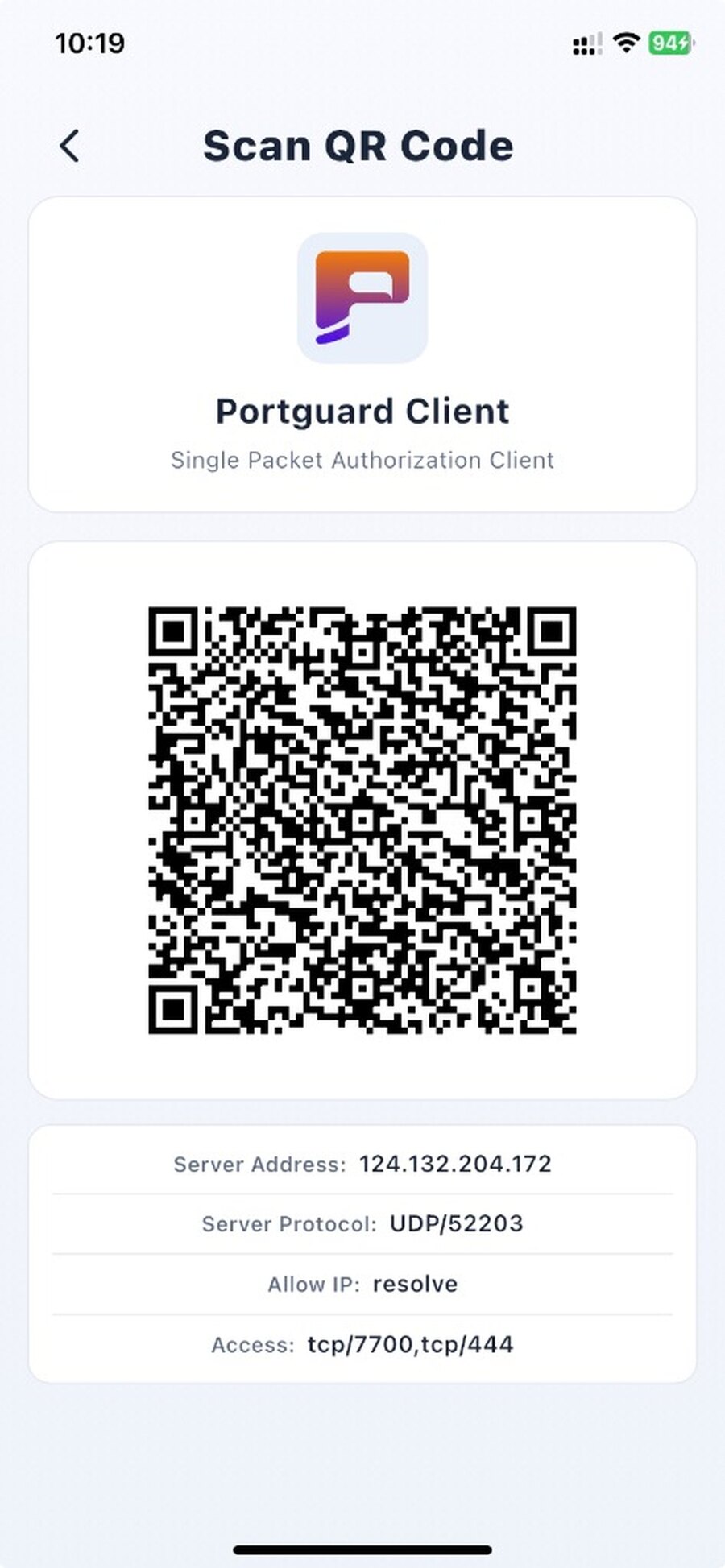
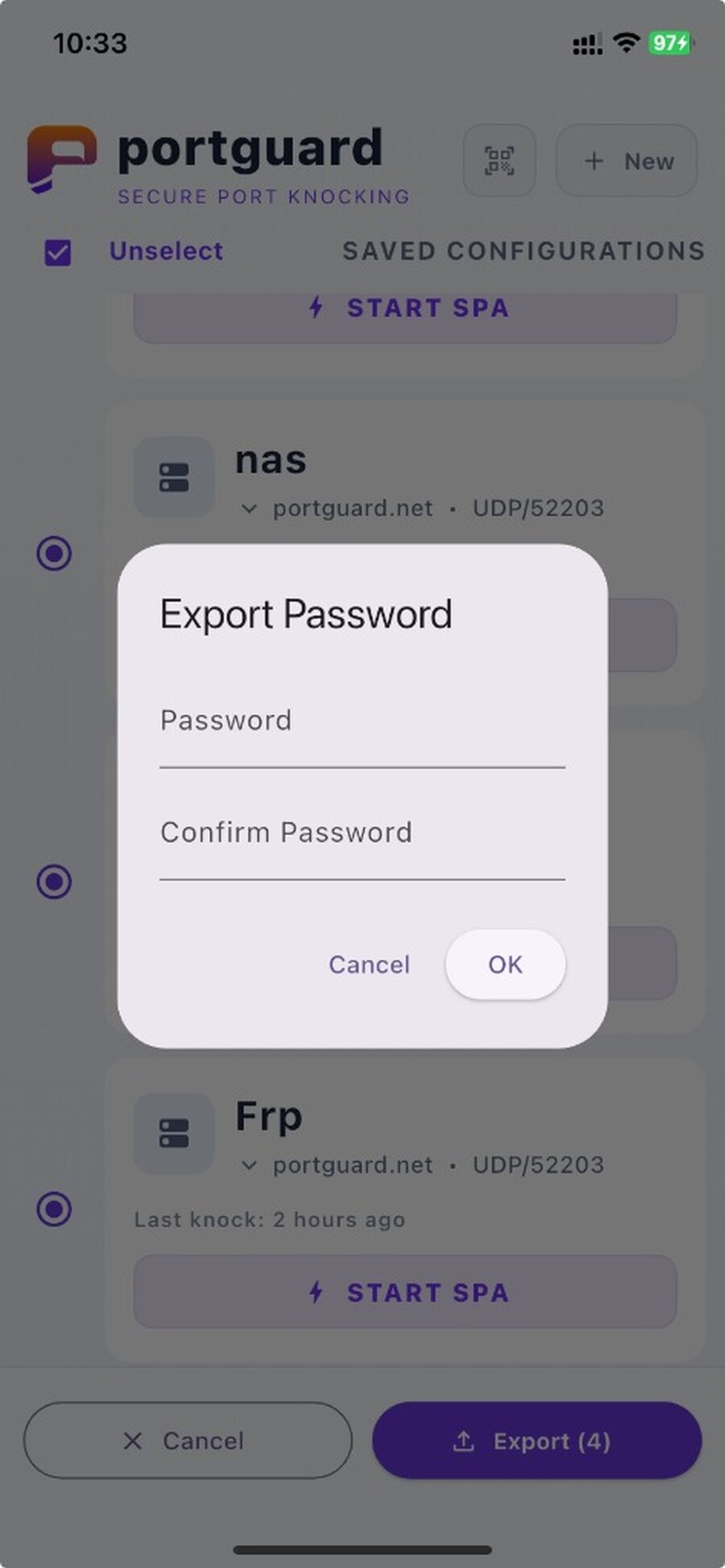
Use PortGuard Client on Windows (x86_64)
- Step#1 Download PortGuard Client for Windows (x86_64)
- Step#2 Launch
PortGuard Client - Step#3 Click
+ Newto create a profile, or import a.fwknoprc/ QR configuration when available - Step#4 Click
Start SPAto send a fwknop-compatible SPA packet; useStopto end an auto knock session
Use PortGuard Client on macOS x64
- Step#1 Download PortGuard Client for macOS
- Step#2 Launch
PortGuard Client - Step#3 Click
+ Newto create a profile, or import a.fwknoprc/ QR configuration when available - Step#4 Click
Start SPAto send a fwknop-compatible SPA packet; useStopto end an auto knock session
Use PortGuard Client on iOS
- Step#1 Download PortGuard Client for iOS
- Step#2 Launch the
PortGuard Clientapp - Step#3 Tap
Scan QR Codeto scan the QR code displayed on the desktop or generated usingfwknopd --qronfwknopdor PortGuard Server, or tap+ Newto manually create the corresponding configuration - Step#4 Tap
Start SPAto send a fwknop-compatible SPA packet
Use PortGuard Client on Android
- Step#1 Download PortGuard Client for Android
- Step#2 Launch the
PortGuard Clientapp - Step#3 Tap
Scan QR Codeto scan the QR code displayed on the desktop or generated usingfwknopd --qronfwknopdor PortGuard Server, or tap+ Newto manually create the corresponding configuration - Step#4 Tap
Start SPAto send a fwknop-compatible SPA packet