PortGuard Client 工具
PortGuard Client 是支持 fwknop SPA 协议的跨平台 GUI 客户端。它可以导入 .fwknoprc 或二维码配置,并向 fwknopd 或 PortGuard Server 发送兼容 fwknop 的授权数据包。
截至 2025 年 6 月 13 日,macOS x64、Windows x64、Android 和 iOS 版本可下载:
最新 PortGuard Client 界面
当前客户端的桌面端和移动端使用同一套核心交互。下面的截图展示了配置列表、单次 SPA、二维码导入和加密导出。
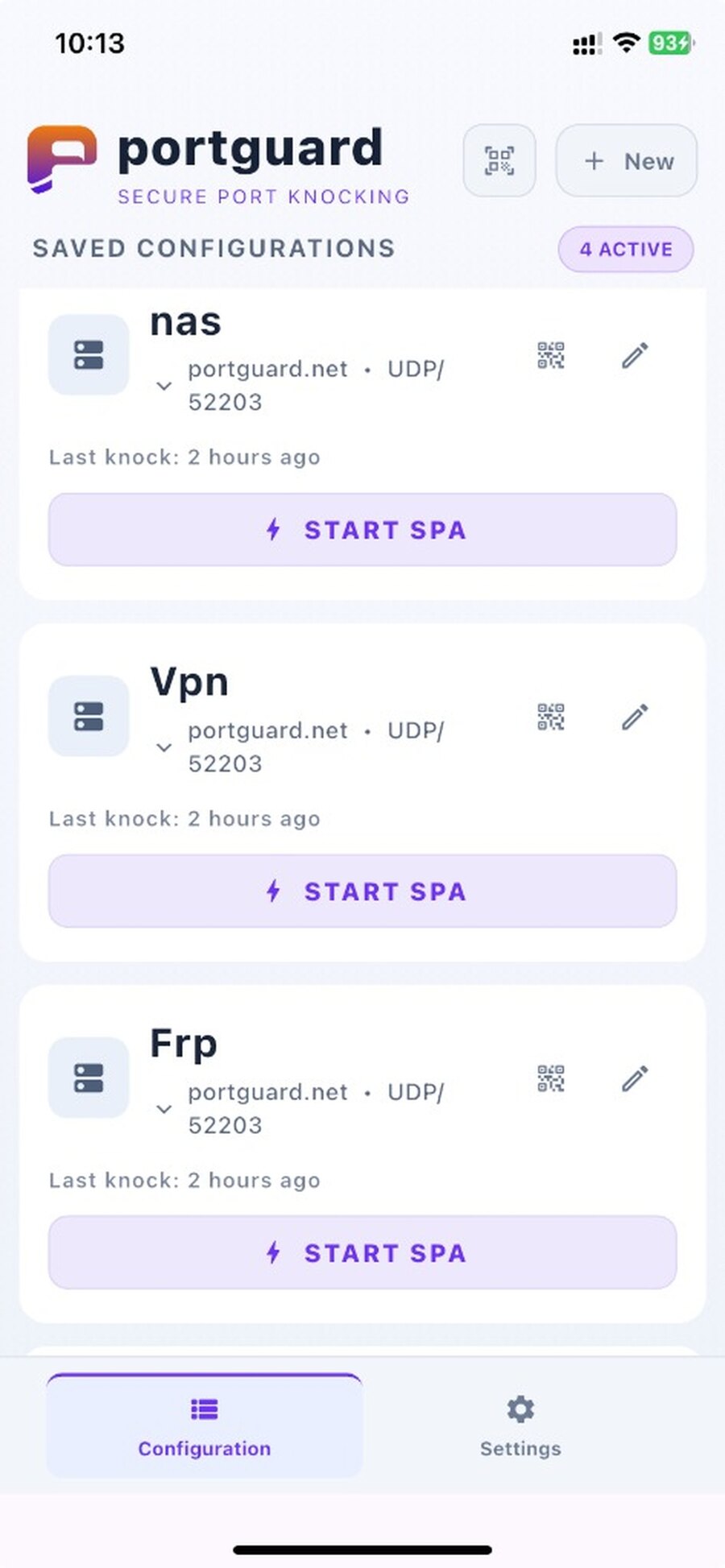
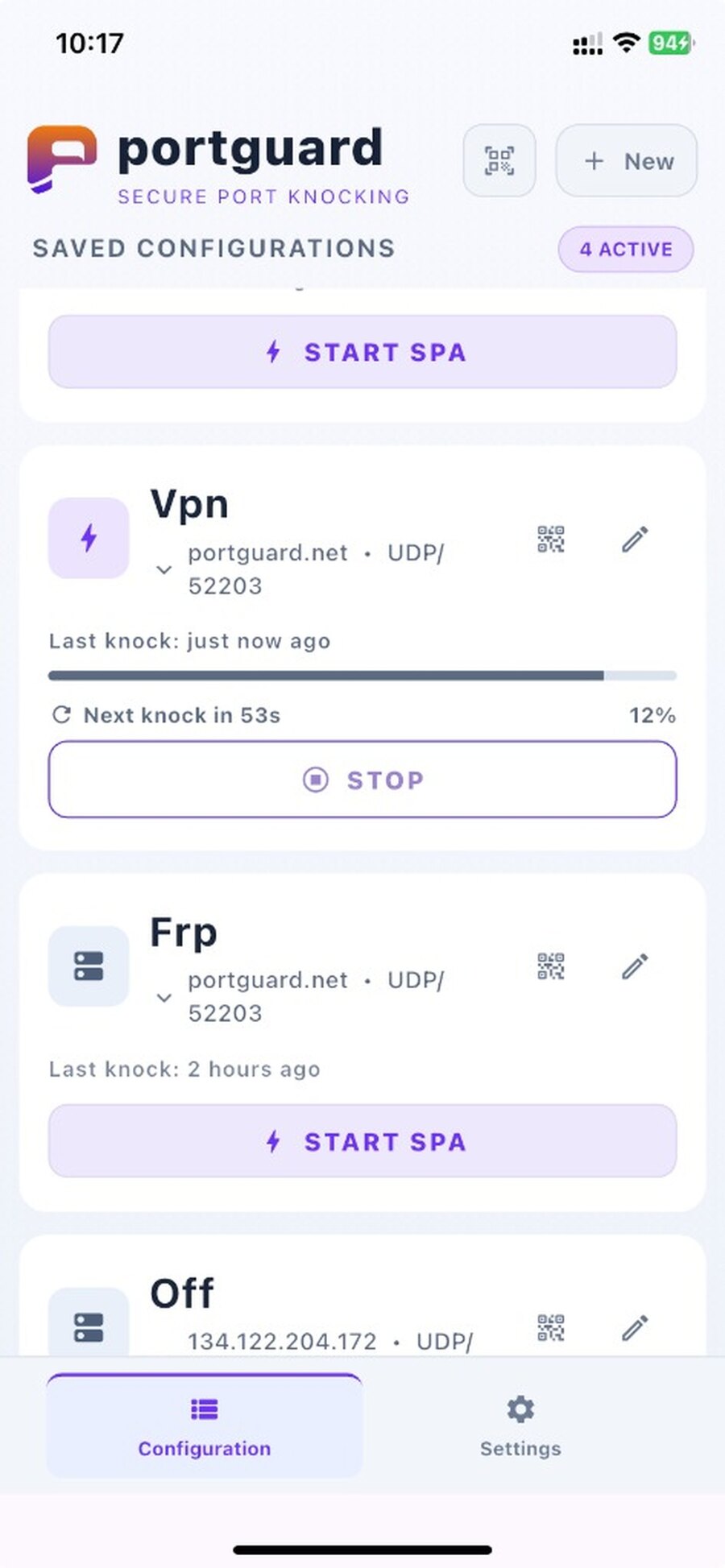
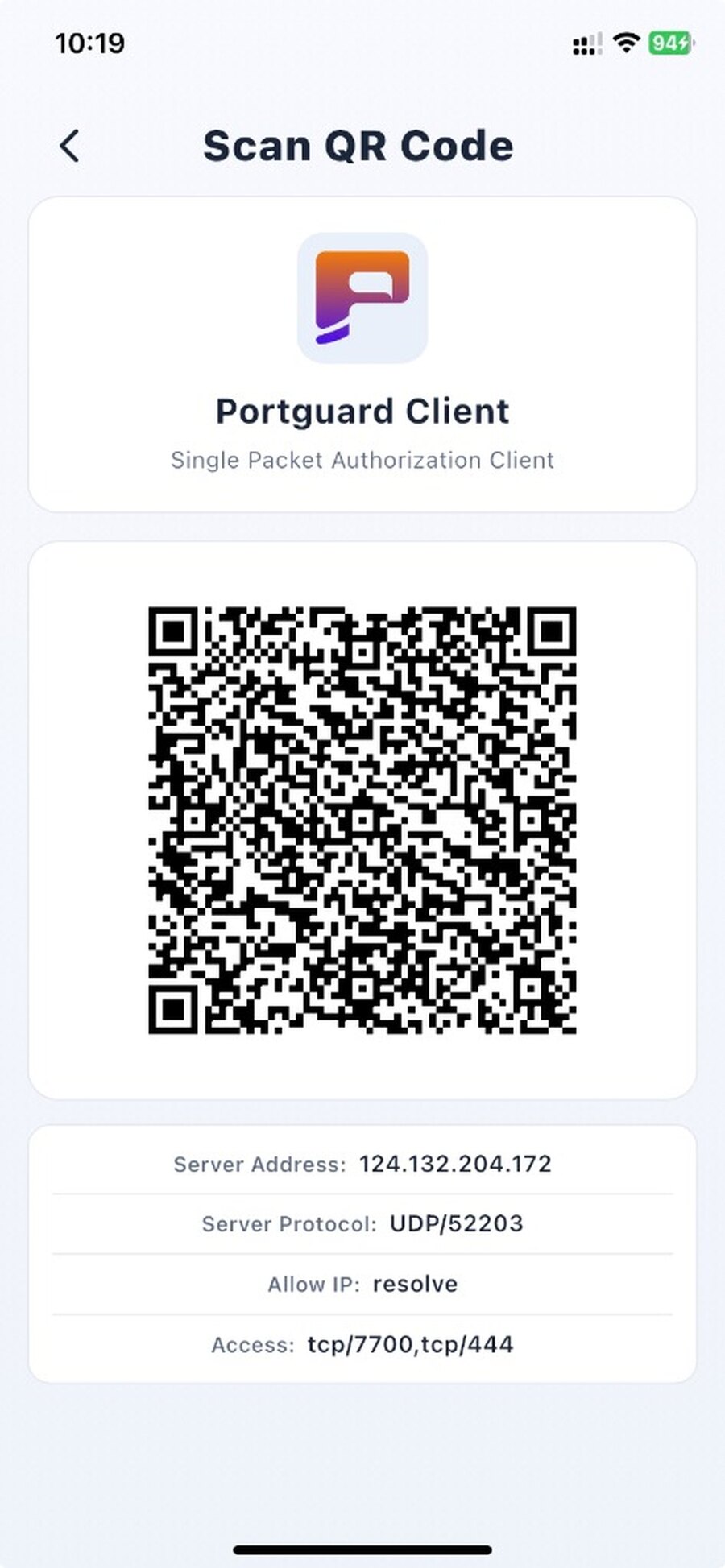
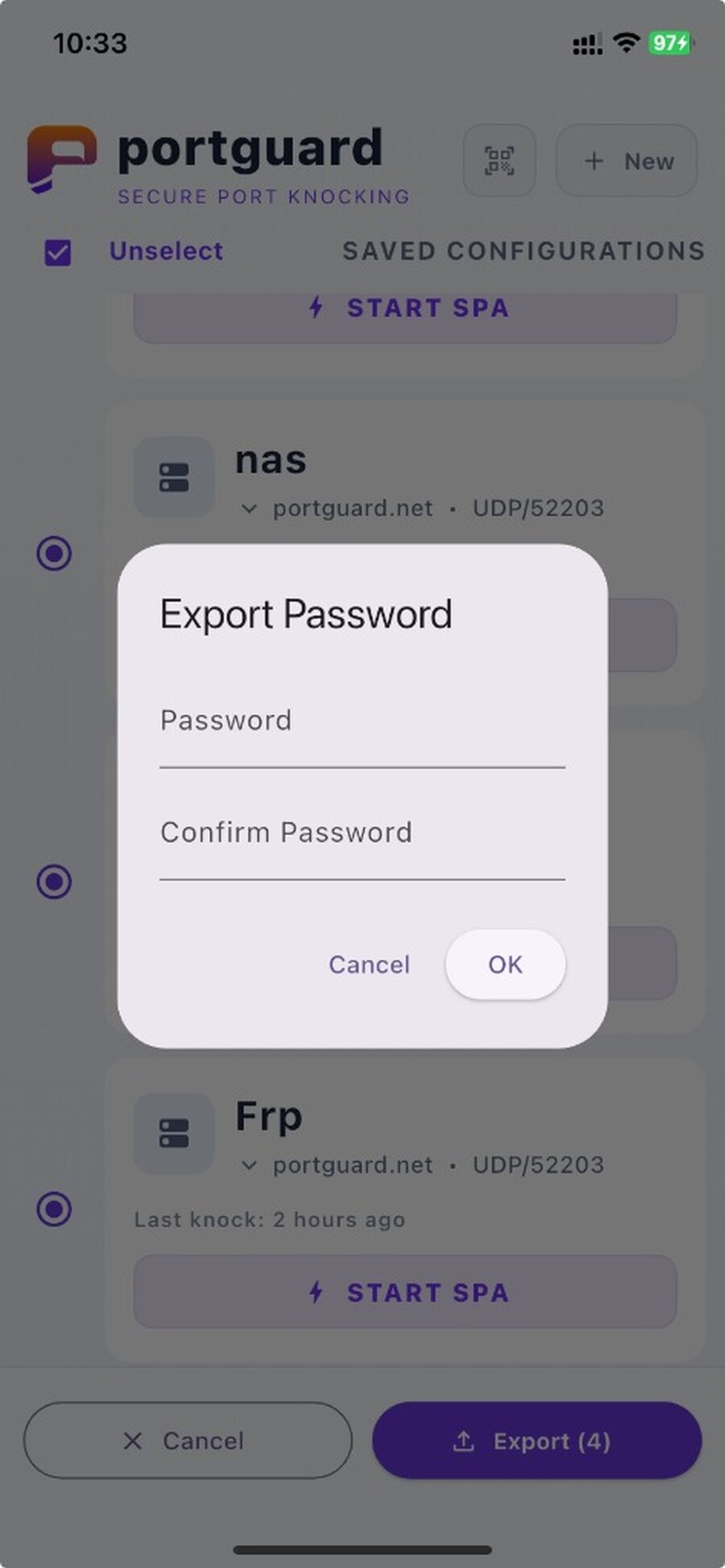
在 Windows (x86_64) 上使用 PortGuard Client
- 步骤#1 下载 Windows (x86_64) 版 PortGuard Client
- 步骤#2 启动
PortGuard Client - 步骤#3 点击
+ New创建配置,或在可用时导入.fwknoprc/ 二维码配置 - 步骤#4 点击
Start SPA发送兼容 fwknop 的 SPA 数据包;自动敲门会话结束时点击Stop
在 macOS x64 上使用 PortGuard Client
- 步骤#1 下载 macOS 版 PortGuard Client
- 步骤#2 启动
PortGuard Client - 步骤#3 点击
+ New创建配置,或在可用时导入.fwknoprc/ 二维码配置 - 步骤#4 点击
Start SPA发送兼容 fwknop 的 SPA 数据包;自动敲门会话结束时点击Stop
在 iOS 上使用 PortGuard Client
- 步骤#1 下载 iOS 版 PortGuard Client
- 步骤#2 启动
PortGuard Client - 步骤#3 点击
Scan QR Code扫描桌面端显示的二维码,或扫描fwknopd --qr在fwknopd/ PortGuard Server 上生成的二维码;也可以点击+ New手动创建配置 - 步骤#4 点击
Start SPA发送兼容 fwknop 的 SPA 数据包
在 Android 上使用 PortGuard Client
- 步骤#1 下载 Android 版 PortGuard Client
- 步骤#2 启动
PortGuard Client - 步骤#3 点击
Scan QR Code扫描桌面端显示的二维码,或扫描fwknopd --qr在fwknopd/ PortGuard Server 上生成的二维码;也可以点击+ New手动创建配置 - 步骤#4 点击
Start SPA发送兼容 fwknop 的 SPA 数据包